
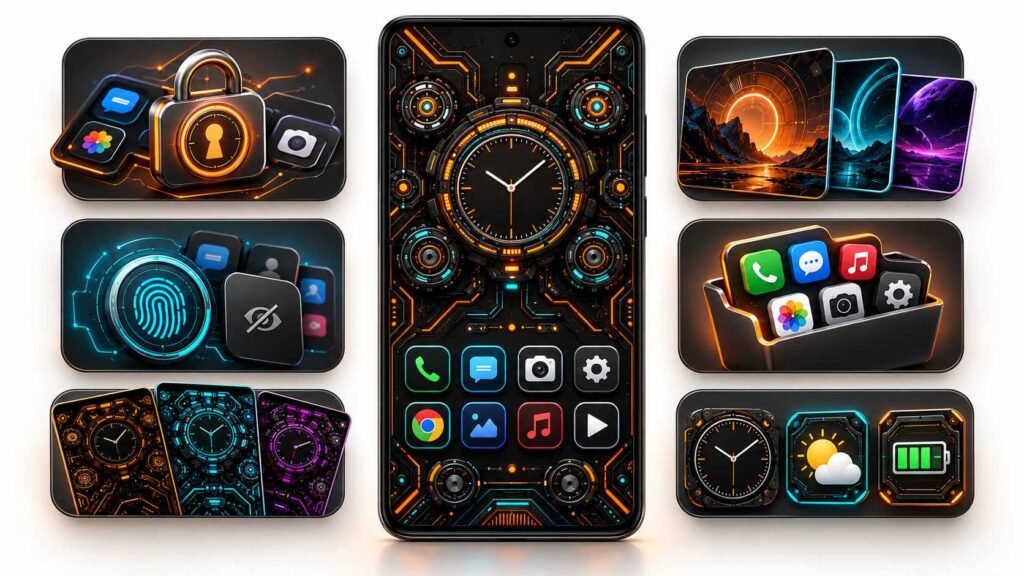
Circuit UI Launcher – AppLock is an Android home-screen app for people who enjoy futuristic designs, coordinated colours and quick access to everyday tools. Its advertised features include custom themes, wallpapers, widgets, app folders, AppLock and hidden-app controls.
The main reason to consider it is its appearance and home-screen organisation. Before making it your everyday launcher, check whether its layout, advertising and privacy features suit how you use your phone.
This guide explains the available features, how to get started and what to test before relying on it. It is based on the developer’s published information, rather than hands-on performance or security testing.
Circuit UI Launcher: App Details
| Detail | Information |
|---|---|
| App name | Circuit UI Launcher – AppLock |
| Developer on Google Play | Launchers World |
| Platform | Android |
| Category | Personalization |
| Advertising | Contains ads |
| Purchases | Offers in-app purchases |
| Listed update date | August 12, 2026 |
| Official download | Google Play |
Table of Contents
The update notes mention Android 16 support, bug fixes and performance improvements. These are developer-reported changes; compatibility should still be checked on your device through Google Play. Listing details were checked on October 20, 2026.
What Does Circuit UI Launcher Do?
A launcher controls the home-screen experience: the interface you return to when you press the Home button or use the Home gesture.
Circuit UI Launcher focuses on a circuit-inspired look, with customisable colours and shortcuts. Think of it as a way to redesign how you access your apps. Installing a launcher does not upgrade your phone’s hardware or replace its Android operating system.
Main Features and How They Can Help
Custom Themes and Wallpapers
The supplied app description advertises adjustable theme colours, hi-tech wallpapers, transparency controls and support for images from your gallery.
For a comfortable everyday setup, choose a background that keeps app labels easy to read. A dramatic wallpaper may look attractive in screenshots but become distracting behind small icons.
Widgets for Everyday Information
Advertised widgets include a clock, weather, calendar, battery information, music controls, maps and a memory analyser.
Start with the information you regularly check. A clock, calendar and battery display may be more useful than filling the screen with every available panel.
A memory display should not be treated as evidence that the launcher makes your phone faster.
Built-In AppLock
AppLock is advertised as a way to restrict access to selected apps without installing a separate app-locking tool.
Before depending on it, test it with a non-sensitive app:
- Enable the lock using the instructions shown in the launcher.
- Open the selected app from the home screen.
- Try opening it through a notification and the recent-apps screen.
- Restart your phone and check the behaviour again.
These checks help you understand what the feature actually protects on your device. Keep your phone’s normal screen lock enabled as well.
Hide Apps
The description advertises app hiding with fingerprint-related functionality.
Hiding an icon and locking an app serve different purposes. Hiding primarily makes an app less visible in the launcher; locking is intended to restrict access.
Do not assume that hiding removes every sign of an installed app. Check notifications, search results and Android Settings separately, especially if discretion is your main reason for using the feature.
Icon Packs and Colour Matching
The advertised icon options include an adaptable white icon pack and support for third-party packs.
A consistent icon style can make the home screen easier to scan. When trying a different pack, check whether your most-used apps remain recognisable and whether unsupported icons look out of place.
Gestures and Folders
The description includes swipe, tap and double-tap controls, along with long-press options for organising apps and folders.
Set up one gesture at a time so you can remember what it does. For folders, simple groups such as Work, Shopping and Entertainment are usually easier to navigate than a large collection of loosely organised icons.
You May Also Like
 Home App Review: Windows-Style Android Launcher Worth Using?
 Orbit Launcher Sci-fi AI Theme Review: Should You Replace Your Android Launcher?
 Audio Manager: Hide Media File Review – Should You Use It to Hide Photos and Videos on Android?
 Snappy Launcher for Android – Features, Themes & App Lock Guide
Hi-Tech Keyboard Options
The developer describes more than 50 hi-tech keyboard options for use within the launcher.
Do not assume this means the keyboard will automatically replace your current keyboard in every app. Check its scope inside the installed version before changing your normal typing setup.
How to Set Up Circuit UI Launcher
The following is a general Android setup guide. Exact menus and prompts vary by phone and software version.
- Open the official Google Play link below.
- Confirm the app name and developer before installing.
- Launch the app and follow its introductory instructions.
- If prompted, select it as your default Home app.
- If no prompt appears, search your phone’s Settings for Default apps or Home app, then choose Circuit UI Launcher.
- Set a readable theme and organise your most-used apps.
- Enable optional features individually and test each one.
Take a screenshot of your current home screen first if you want a reference for rebuilding your layout.
View Circuit UI Launcher – AppLock on Google Play
Privacy and Permissions: What Should You Check?
The Google Play Data safety section declares no data collection or third-party sharing. However, the linked developer privacy policy discusses third-party services, including AdMob, that may collect identifying information, along with diagnostic log data. These statements need clarification before making a blanket claim that the app collects nothing.
This difference alone does not establish that the app is unsafe. It does mean privacy-conscious users should read both disclosures and ask the developer about anything unclear.
To review ordinary Android permissions, open:
Settings → Apps → Circuit UI Launcher → Permissions
Android lets you allow or deny permissions from this screen. Menu names and available choices can vary by device.
Enable permissions when you understand which feature needs them. If the app requests additional special access, read the explanation on that screen before continuing.
What to Check Before Keeping It
Spend a little time using the launcher for normal activities before deciding whether it suits you.
| Check | What to look for |
|---|---|
| Readability | Can you easily read labels against your chosen wallpaper? |
| Navigation | Can you quickly reach calls, messages, camera and other daily apps? |
| Layout flexibility | Can you arrange the screens and widgets the way you need? |
| Advertising | Are the placements and frequency acceptable during normal use? |
| AppLock | Does it behave consistently across the ways you open an app? |
| Battery use | Does your phone’s battery screen show an unwanted increase during comparable use? |
Avoid judging battery performance immediately after installation, when you may be spending unusually long customising the screen.
Common Questions
Is Circuit UI Launcher ad-free?
No. Google Play labels it as containing ads and offering in-app purchases. Check the current purchase screen for what any paid option includes; do not assume every purchase removes all advertising.
Can it make my phone faster?
A different layout may make your apps quicker to find, but that is different from improving device performance. This guide does not verify speed or battery-saving claims.
Does Hide Apps provide the same protection as AppLock?
No. Treat app hiding as an organisation and visibility feature. Test AppLock separately if you want an additional access restriction.
What if a widget does not update?
Check the widget’s settings, your internet connection where relevant, and any permission requested for that feature. Avoid granting unrelated access just to troubleshoot a display.
How do I switch back to my original launcher?
Search Android Settings for Home app or Default apps, then select your previous launcher. Press Home to confirm the change before uninstalling Circuit UI Launcher if you no longer want it.
Should I download a separate APK?
Use the official Google Play listing linked above as your starting point. It lets you verify the developer and check whether the app is available for your device.
Is Circuit UI Launcher Right for You?
Circuit UI Launcher is worth considering if you want a futuristic home screen and enjoy experimenting with colours, icons and app organisation.
Start with the visual features, check how comfortably you can complete everyday tasks, and test privacy controls before relying on them. A successful home-screen setup should make your phone easier to use as well as more enjoyable to look at.
More Articles You May Like
![Epic Themes Launcher App 2026 [ELEGANT THEMES]: Is It Worth Trying for Android Customization?](https://tnshorts.com/wp-content/uploads/2026/05/epic-themes-launcher-app-2026-300x225.png "Epic Themes Launcher App 2026 [ELEGANT THEMES]: Is It Worth Trying for Android Customization? 5") Epic Themes Launcher App 2026 [ELEGANT THEMES]: Is It Worth Trying for Android Customization?
Epic Themes Launcher App 2026 [ELEGANT THEMES]: Is It Worth Trying for Android Customization?
 NEW STYLE Nextron Launcher 2026: Should You Try This Android Launcher?
 Tree Launcher App for Android 2026 – Features, Benefits & Safe Alternatives
 Secret Piano Vault Hide Apps, Videos App for Android 2026 – What It Does and Why Users Use It