
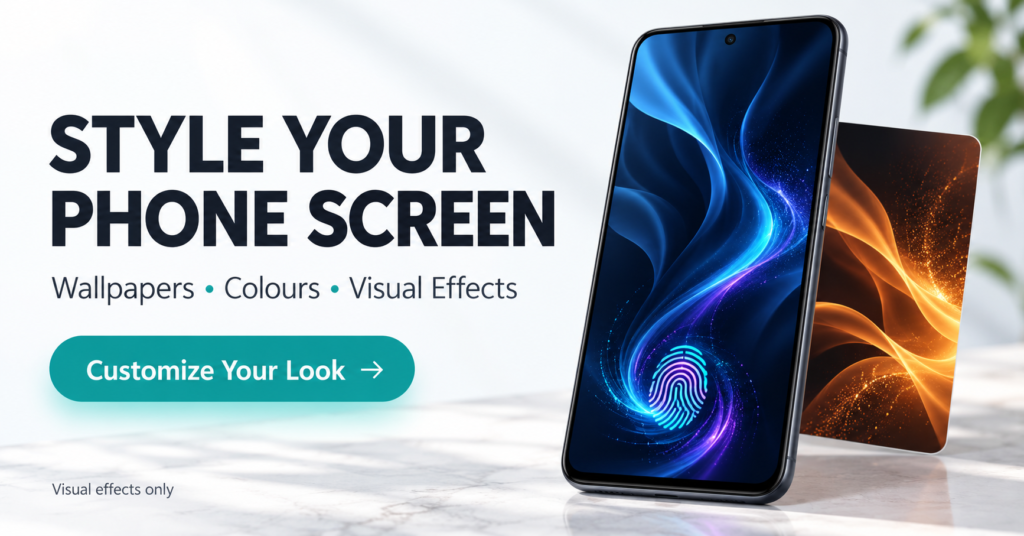
Quick Answer
Fingerprint Lock 3D Animations decorates your screen; it does not upgrade fingerprint security or replace your phone’s biometric unlocking system. It offers wallpapers and adjustable visual effects. Consider it for appearance, not faster unlocking or fixing a faulty sensor. The Google Play listing identifies Ravi Techno Apps as the developer and includes ads and in-app purchases.
Before paying, check whether the effect looks right on your actual lock screen. There is also a privacy-policy mismatch worth understanding.
Table of Contents
A fingerprint picture is not a fingerprint sensor
The app’s name can create an expectation that installing it will change how the phone recognises your finger.
Its developer explicitly describes it as a visual personalisation app that does not control the fingerprint sensor or security settings.
Three things should stay separate in your decision:
| What you want | What to understand |
|---|---|
| A fingerprint-themed design | This is the app’s intended purpose. |
| An effect linked to successful unlocking | Do not assume a wallpaper animation responds to biometric authentication. |
| Better recognition or stronger security | Use your phone’s security settings and manufacturer guidance. |
Moving the animation does not move the sensor. If your phone reads fingerprints through its side button or rear sensor, a glowing symbol on the display cannot turn that display into a scanner.
Google’s Pixel guidance illustrates this distinction: fingerprint unlocking requires touching the phone’s actual sensor, whose location depends on the device.
What the app offers—and where it could be useful
According to the supplied app description, you can choose a built-in wallpaper, select a gallery image or capture a photo, then combine it with an animation. Position and size controls help arrange the design, while saved creations let you return to earlier combinations.
That could suit someone who wants a matching colour scheme across their wallpaper and fingerprint-themed decoration.
However, the useful question is not simply whether the preview looks attractive. It is whether the finished design remains comfortable to use around the clock, notifications and real fingerprint indicator.
A bright ring might look striking on an empty preview but feel distracting once your normal lock-screen information appears.
Try this before spending time designing a theme
Use a built-in background for your first attempt. Save personal-photo editing for after you know the result works on your phone.
- Apply a simple design. Keep your existing PIN, password and fingerprint settings enabled.
- Lock and wake the phone. Judge the actual lock screen rather than only the app preview.
- Check the real touch target. Does the decoration guide your finger towards the sensor or make its location confusing?
- Check readability. Look at the clock, notifications and charging information.
- Unlock normally. Notice whether the effect simply plays as decoration or behaves the way you expected.
- Repeat after a restart. Confirm that the appearance still suits you before buying anything.
These are suggested checks, not results from a TNShorts device test.
An often-overlooked issue is visual alignment: a design can appear centred in an editor but feel misplaced once applied. If that happens, adjust the decoration to the phone’s real interface; do not change your unlocking habits to follow an inaccurate graphic.
Limitations to understand
- It is not a sensor repair tool. Decorative effects cannot resolve fingerprint recognition faults.
- Successful-unlock synchronisation is unverified. The reviewed information does not establish that the effect follows the phone’s biometric success or failure state.
- Always-on display behaviour is unverified. Do not assume the effect will remain visible while the screen is off.
- Compatibility needs a device check. TNShorts has not verified lock-screen behaviour across Android brands and versions.
- Battery impact has not been measured. Avoid assuming either zero impact or heavy drain. Compare your phone’s battery usage during normal use.
- Purchase details need checking. Confirm what a payment unlocks and whether it is a one-time purchase or subscription before accepting.
Things to know before installing
Install through the official Google Play listing. Check availability and compatibility from the phone you intend to use.
For permissions, connect each request to the feature you selected:
- Camera access makes sense when you choose to take a wallpaper photo.
- Photo access makes sense when you select a personal image.
- If Android offers access to selected photos, consider that option instead of your entire collection.
- For any additional permission, read the explanation before allowing it.
The full permission behaviour has not been independently tested. These are practical decision rules, not a claim that the app requests unrelated access.
You May Also Like
Privacy: the listing and policy need clarification
Google Play’s Data safety section declares no collection or third-party sharing. These are developer-provided declarations, not an independent privacy audit.
However, the linked privacy policy applies broadly to Ravi Techno Apps’ products. It describes possible collection of gallery pictures, device information and app usage information, and possible disclosure of non-personal information to promotional partners. It also contains statements saying personal information is not collected or stored.
The public wording does not provide a consistent, app-specific explanation. That does not prove this particular app uploads your pictures, but it prevents a confident “no data collected” recommendation.
Privacy-conscious users can start with built-in artwork and ask the developer whether selected photos leave the device and what advertising services process. If that uncertainty is unacceptable, use your phone’s existing wallpaper controls.
Who should use it—and who should avoid it?
Consider trying it if you enjoy screen customisation, understand that the fingerprint graphic is decorative, and are willing to check how it behaves on your device.
Skip it if your goal is faster recognition, stronger protection, adding fingerprint hardware, or repairing a sensor. It is also a poor fit if you want clearly documented privacy practices before installing another personalisation app.
Alternatives based on your actual goal
| Your goal | Start here | Trade-off |
|---|---|---|
| A cleaner-looking screen | Existing wallpaper and lock-screen settings | You may have fewer decorative effects. |
| A different system unlock effect | Check whether your phone includes a fingerprint animation setting | Availability depends on the model and software. |
| A fingerprint-themed appearance without motion | A static wallpaper | No animated effect. |
| More reliable fingerprint recognition | Manufacturer troubleshooting and security settings | This addresses unlocking rather than decoration. |
For example, Google explains that screen protectors can affect fingerprint recognition on supported Pixel phones. That is a hardware-and-setup issue to investigate through official guidance, rather than through a wallpaper app.
Frequently asked questions
Does it make fingerprint unlocking faster?
There is no verified basis for that expectation. Treat it as a visual customisation tool.
Can I move my actual fingerprint scanning area?
No. Repositioning a graphic changes where the decoration appears, not where the phone’s sensor reads your finger.
Will the animation appear only when my fingerprint is accepted?
That behaviour has not been verified. Check it on your phone before assuming it replaces the system’s unlock feedback.
Will it work on a phone with a side fingerprint button?
The decoration cannot move fingerprint recognition onto the screen. Whether the wallpaper features are compatible should be checked through Google Play on that device.
Do I need to provide a personal photo?
The supplied description includes built-in wallpaper options. Start with those if you do not want to use a gallery image.
Is it completely free?
The listing includes ads and in-app purchases. Check the current in-app terms to see which designs or features require payment.
How can I remove the effect?
Choose a standard wallpaper through your phone’s wallpaper settings and uninstall the app if you no longer want it. Check both home and lock screens afterwards. Keep your normal screen lock enabled.
Editorial disclosure: TNShorts publishes independent Android guides, comparisons and educational content. This article uses public developer information and practical analysis; it is not a hands-on performance test or security audit. Features, prices, permissions and availability may change. Verify important details through official sources.
Final recommendation
Fingerprint Lock 3D Animations may suit users who want adjustable screen decoration and saved wallpaper combinations. Its limits matter: it does not improve fingerprint recognition, its real-device behaviour needs checking, and its privacy documentation needs clarification.
Try a simple built-in design first, verify the actual lock-screen result, and only then consider personal photos or purchases. For security, recognition problems or a simpler appearance, start with your phone’s built-in settings.
More Articles You May Like
 Fingerprint Live with Multiple Animation HD – Best App for Stylish Lock Screen Wallpapers
 Fingerprint Animation: Creative, Smart, Secure, Stylish
 In Display Fingerprint Animation: Best Fingerprint Collection for Android & iOS
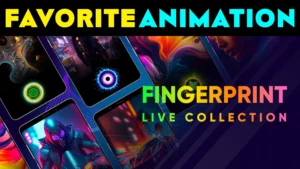 Fingerprint Animation App: FAVORITE ANIMATION, Live Wallpapers & In-Display Themes