
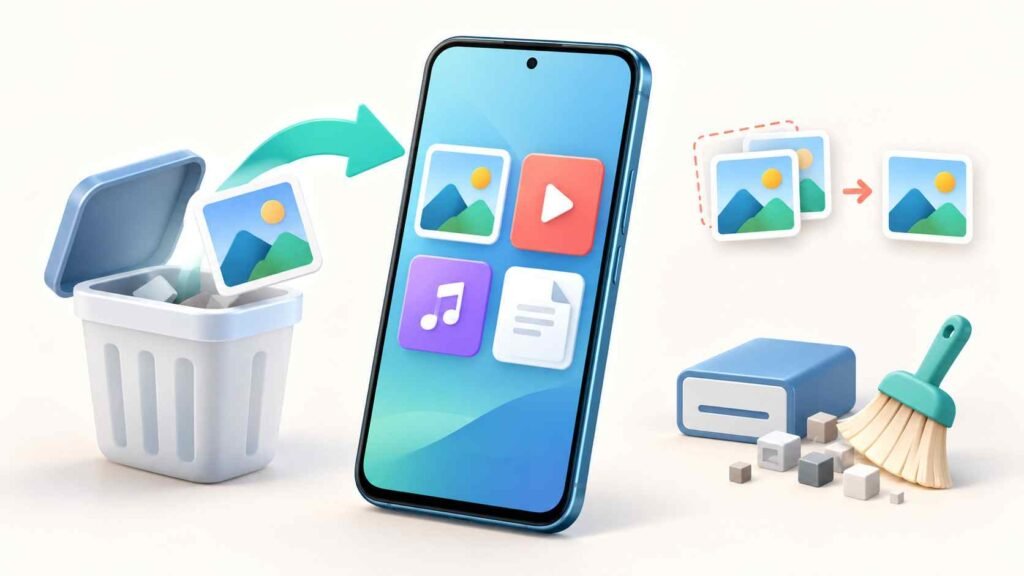
Quick Answer
Check your Gallery, Google Photos and file manager’s Trash before installing a recovery app. A missing file may still exist in a backup or another folder. File Recoup advertises recovery features, but that does not guarantee it can restore permanently deleted originals. Avoid cleaning storage until you have checked your recovery options.
Start with where you deleted the file
A photo removed from a gallery, a PDF deleted in a file manager and a document deleted from Google Drive need different recovery steps.
Before choosing an app, answer one question: Which app were you using when the file disappeared?
| What happened? | First place to check | Important limitation |
|---|---|---|
| You deleted a photo in Google Photos | Collections → Trash | It must still be in Trash |
| You deleted something in your phone’s Gallery | Gallery’s Trash, Bin or Recently Deleted folder | Names and retention periods depend on the phone |
| You deleted a file through Files by Google | Menu → Trash → select the file → Restore | Some cleanup actions bypass Trash |
| You deleted a document from Google Drive | Drive’s Trash | A local recovery scan is not the first solution for a cloud file |
| A downloaded file disappeared | Downloads, the original website, email or conversation | Downloading another copy may be easier than recovery |
| A picture disappeared without a deletion | Correct account, Archive and other folders | Missing from the main screen does not necessarily mean deleted |
Table of Contents
Google’s current Photos guidance states that items in Trash are permanently deleted after 30 days. Restore anything important promptly, and check the expiry information shown in your app.
Files by Google also retains trashed files for 30 days. However, files removed through its Junk files card are permanently deleted instead of going to Trash. That distinction matters if the loss happened during cleanup.
Google Drive has its own 30-day Trash period. Check the account that originally held the document.
What is All File Recovery / File Recoup?
The supplied app link uses the package name com.filerecoup.datarecovery. The indexed Google Play result calls it File Recovery, while its description uses File Recoup. The supplied name is All File Recovery.
Use the exact Google Play listing to identify it rather than choosing a similarly named app.
Its description advertises file scanning and recovery alongside junk cleaning and duplicate removal. These are developer claims, not independently demonstrated recovery results.
Verification note: This guide is not a hands-on test. The full live listing could not be retrieved during research, so the developer identity, current pricing, advertising, permissions and Data safety declarations remain unverified. The text supplied under “Developer” describes features; it does not identify the developer.
Understand what “recovered” actually means
When evaluating a recovery result, distinguish between three outcomes:
- Restored from Trash: The app kept the file temporarily and returned it.
- Found another copy: A surviving download, exported image or other copy was located.
- Reconstructed deleted data: Data was recovered after the original file was removed.
All three can help, but they do not prove the same capability.
For example, finding a small version of a photograph might be useful for remembering the scene. It does not establish that the full-resolution original has been restored.
Likewise, a large scan result count is not enough. The useful measure is whether your specific missing file opens correctly at the quality you need.
This is an evaluation principle, not a claim about what File Recoup displayed in a test.
Limitations: why “deep scan” is not a guarantee
Android restricts what apps can access. Even the broad “all-files access” permission does not let an app access other apps’ protected app-specific directories. It should not be interpreted as unrestricted access to every part of the phone.
For readers, the practical consequences are:
- A scanner may not be able to inspect the location where your file existed.
- Supporting JPG, MP4 or PDF does not establish that every deleted file of that type is recoverable.
- A preview does not prove that the complete file can be exported.
- Calling an app a “recycle bin” does not establish that it preserved files deleted before installation.
- A recovery app cannot promise to restore an original that is no longer available to it.
The supplied description claims original-quality recovery without root. Treat that as a claim to verify, not an expected result.
Do not combine recovery and cleanup in the same session
File Recoup’s recovery and cleaning functions serve different goals: one tries to find wanted files, while the other removes files.
TNShorts recommends this order:
- Check Trash, backups and existing copies.
- Recover or copy the files you need.
- Open the saved files and verify them.
- Keep an additional copy somewhere separate.
- Only then review cleanup suggestions.
Avoid bulk duplicate deletion while deciding which version to keep. Two pictures that look alike may differ in resolution, cropping or edits.
If storage is nearly full, copy known, intact files to another device or trusted backup location and verify those copies before removing anything. Do not rely on an unexplained “clean everything” button during a recovery attempt.
Things to know before installing
Confirm the app’s identity. Compare the package link, developer name and support details. Similar names are not proof that two listings belong to the same developer.
Check the complete cost. Verify whether scanning, previewing and saving files have different charges or restrictions. This guide could not confirm the app’s current pricing.
Read the permission request. Access to photos, videos or shared files may be relevant to scanning. Broad access deserves careful consideration because the phone may contain private pictures and documents.
Check how files are handled. Look for a clear explanation of whether scanning happens on the device, whether files are uploaded, and how uploaded data can be deleted. Do not assume offline processing.
You May Also Like
Avoid unexplained access requests. If an app requests contacts, SMS, Accessibility or device-administrator access, look for a specific reason connected to the feature you want. Do not grant access simply because a screen says it is necessary.
These are installation checks, not allegations that this particular app requests those permissions.
Is it safe?
There is not enough verified information here to give File Recoup a security endorsement. A Play Store presence alone does not answer how an app handles private files.
If you cannot verify its developer, privacy policy or handling of scanned content, use the existing Trash and backup options first.
How to check whether a recovered file is usable
Do this before deleting any remaining copies:
| File type | What to check |
|---|---|
| Photo | Open it outside the recovery app, zoom in and inspect its dimensions |
| Video | Play the beginning, middle and end; check sound and duration |
| PDF or document | Open every important page and check that the content is complete |
| Audio | Play different sections and confirm the expected length |
Also locate the saved file in your normal file manager. A preview inside an app is not the same as having a usable copy saved where you can access it.
If a recovered photograph is smaller than expected, keep it if useful—but label it as a partial substitute rather than assuming you have the original.
Better alternatives depend on what you lost
Google Photos Trash suits recently deleted pictures and videos still retained there. It offers a direct restore route, but Google says permanently deleted items cannot be restored through Photos.
Files by Google Trash suits files previously moved there. It is a useful first check, but it does not undo its permanent Junk files deletion.
Google Drive Trash suits documents stored in that account. It does not replace recovery for files that existed only on your phone.
The original source may be the quickest option for an admit card, invoice, emailed attachment or shared photo. Request another copy or download it again. The trade-off is that it may not include your later edits.
An existing independent backup is worth checking when Trash is empty. Confirm that it contains the particular file and version you need.
Who should consider File Recoup—and who should avoid it?
Consider evaluating it only after the direct recovery routes fail, and only if its current privacy information, permissions and charges are acceptable. Its advertised combination of file scanning and media management may interest users who are willing to verify each result.
Skip it if:
- Your file is already available in Trash or a backup.
- You need guaranteed restoration of permanently deleted originals.
- You cannot establish who operates the app or how it handles files.
- You are uncomfortable granting the requested storage access.
- You expect installing it now to recreate a recycle-bin history from before installation.
FAQs
Can I recover deleted Android files without installing an app?
Yes, if the file remains in an existing Trash folder, backup or another location. Check the app used to delete it, then look for another copy.
Can File Recoup recover every permanently deleted file?
That has not been established. Its advertised recovery features do not prove that it can restore your particular file, original quality or protected app data.
Why does a recovered photo look blurry?
You may have found a smaller copy rather than the original. Check its dimensions and view it outside the recovery app before deciding that recovery succeeded.
Does “all-files access” mean an app can recover everything?
No. It gives broad shared-storage access but still has Android restrictions. It is not a guarantee of deleted-data recovery.
Should I run the cleaner before scanning?
TNShorts recommends postponing cleanup until you have located, saved and verified important files. Removing more items complicates deciding what should be preserved.
Is File Recoup free?
Its current pricing and any limits on saving recovered files were not verified. Check the official listing and any payment screen before agreeing to a charge.
What should I do after recovering an important file?
Open it, verify its contents and save an additional copy separately. Check that the second copy opens too.
Editorial disclosure
TNShorts publishes independent Android app reviews, guides, comparisons and educational content. This guide uses publicly available information, the supplied app description and practical analysis; it does not report hands-on testing.
Features, pricing, permissions, privacy practices and availability may change. Verify important details through official developer sources before making decisions.
Final recommendation
Start with the app that deleted the file, then check backups and the original source. These routes may solve the problem without another installation.
File Recoup’s advertised scanning tools deserve attention only with realistic expectations and verified privacy details. Its recovery performance remains unconfirmed, and its cleaning features should wait until your important files are secured.
Your next step: open the relevant Trash folder and look for the exact missing file.
More Articles You May Like
![Permanently Delete Photo Recovery App for Android 2026 – What It Really Does [SUDDEN RECOVER]](https://tnshorts.com/wp-content/uploads/2026/04/Permanently-Delete-Photo-Recovery-App-Android-2026-300x200.webp "Permanently Delete Photo Recovery App for Android 2026 – What It Really Does [SUDDEN RECOVER] 5") Permanently Delete Photo Recovery App for Android 2026 – What It Really Does [SUDDEN RECOVER]
Permanently Delete Photo Recovery App for Android 2026 – What It Really Does [SUDDEN RECOVER]
![Photo Recover Apps on Android in 2026 – What They Do and When They Work [GET BACK PHOTOS]](https://tnshorts.com/wp-content/uploads/2026/03/Photo-Recover-Apps-on-Android-in-2026-300x167.jpg "Photo Recover Apps on Android in 2026 – What They Do and When They Work [GET BACK PHOTOS] 6") Photo Recover Apps on Android in 2026 – What They Do and When They Work [GET BACK PHOTOS]
Photo Recover Apps on Android in 2026 – What They Do and When They Work [GET BACK PHOTOS]
 Deleted Photos Recovery App 2026 – Complete Guide Before You Use (All Recover Updated)
 🗞️ Recover Deleted Photos App 2025 — The Ultimate Photo & Video Recovery Tool by DOSA Apps