
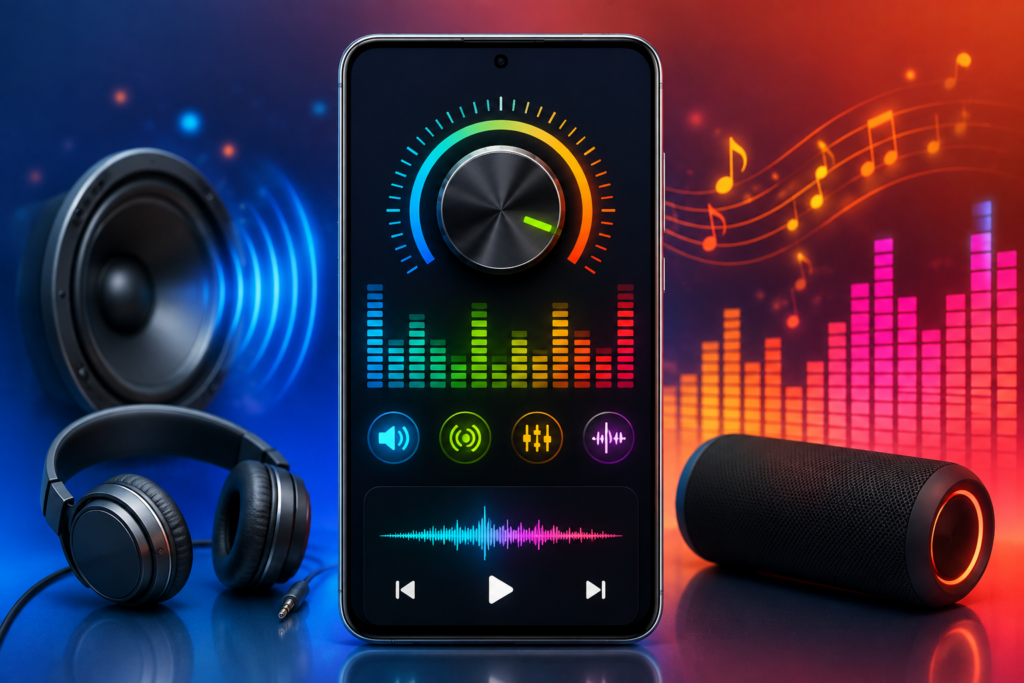
A phone that sounds too quiet can be frustrating, but pushing the volume beyond Android’s normal maximum is not automatically the best solution.
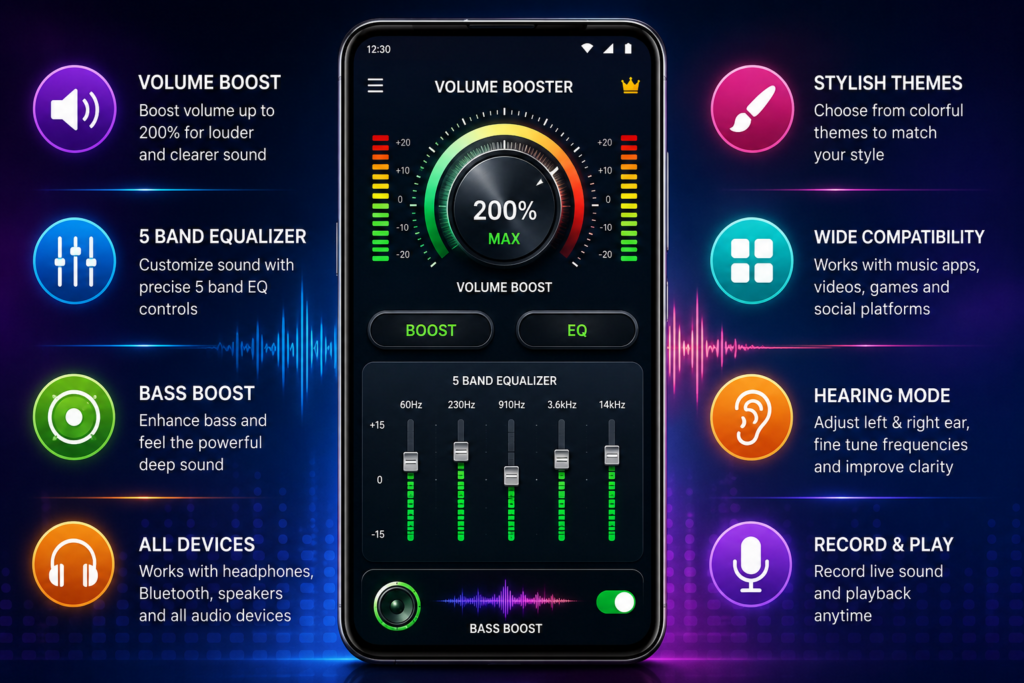
Volume Booster Bass Booster EQ combines several audio tools: volume amplification advertised up to 200%, a 5-band equalizer, bass and virtualizer controls, headphone/Bluetooth support, plus a separate hearing-oriented section.
That makes it more capable than a simple “make it louder” button. It also means you should understand what each feature is doing before turning everything to maximum.
Quick Answer
Volume Booster Bass Booster EQ can be useful when your Android phone, headphones or Bluetooth audio sounds too quiet, but the 200% setting should be treated as extra headroom—not your normal listening level.
The app says it can amplify media volume up to 200% and provides a 5-band EQ covering 60Hz, 230Hz, 910Hz, 3.6kHz and 14kHz. It also includes bass, virtualizer and other sound controls.
The important trade-off is distortion and listening safety.
Making an audio signal louder cannot give a small phone speaker unlimited physical capability. Once the speaker or headphones reach their practical limit, additional amplification can produce harsher sound instead of genuinely better sound.
So the useful question isn’t:
“Can I set it to 200%?”
It’s:
“How much extra boost can my particular device handle while still sounding clean?”
Table of Contents
What This App Is Really Good For
There are three different problems people often group together as “low volume”:
The audio is genuinely too quiet.
A moderate volume boost may help.
The volume is high enough, but speech is difficult to understand.
An equalizer may be more useful than simply increasing everything.
Music sounds thin or lacks impact.
Bass/EQ adjustment may produce a better result than increasing master volume.
Volume Booster Bass Booster EQ is interesting because it provides tools for all three situations instead of treating loudness as the only solution.
According to its current Google Play listing, the app contains ads and in-app purchases and has passed 100,000 downloads.
View Volume Booster Bass Booster EQ on Google Play
What Does “200% Volume” Actually Mean?
This is one of the easiest features to misunderstand.
Seeing 200% doesn’t mean your phone’s physical speaker suddenly becomes twice as powerful.
Your phone still has the same amplifier, speaker driver and physical limits.
A booster can increase the audio signal beyond its normal software level. Whether that sounds better depends on the original audio and the output hardware.
Imagine a quiet video where the speaker is operating comfortably below its limit. Extra gain may make it substantially easier to hear.
Now imagine music already playing near the speaker’s maximum clean output. Pushing that signal much further can cause clipping or audible distortion.
That distinction is more useful than treating “200%” as a guaranteed loudness improvement.
Don’t Start at 200%
If you’re trying this app for the first time, start at your phone’s normal volume.
Then increase the boost gradually.
Stop increasing it when the sound becomes sufficiently loud or when you begin hearing symptoms such as harsh vocals, crackling, buzzing, flattened bass or uncomfortable treble.
The app’s own Google Play description warns that prolonged high-volume playback can damage hearing or speakers and recommends increasing volume gradually.
That warning is worth taking seriously.
The Equalizer May Be More Useful Than the Booster
One overlooked feature is the 5-band equalizer.
The developer lists these bands:
- 60Hz – very low bass
- 230Hz – bass and warmth
- 910Hz – midrange
- 3.6kHz – presence and speech detail
- 14kHz – high-frequency brightness
This matters because “I can’t hear it clearly” does not always mean “everything needs to be louder.”
For example, boosting the entire soundtrack of a movie also raises music, explosions and background effects.
If dialogue is the problem, changing the frequencies associated with vocal clarity may sometimes produce a more useful result than dramatically raising overall volume.
Similarly, someone wanting stronger music bass can experiment with lower-frequency EQ rather than unnecessarily amplifying every frequency.
There is no universal perfect setting because speakers, headphones, recordings and personal preferences differ.
Bass Booster: More Bass Isn’t Always Better Bass
Bass enhancement can make headphones and larger Bluetooth speakers feel fuller.
Phone speakers are different.
Their tiny drivers have limited ability to reproduce deep bass. Increasing low frequencies aggressively doesn’t magically give the hardware a larger speaker cone.
On some phones, extreme bass boost may therefore consume available headroom while producing relatively little useful low-frequency improvement.
A practical approach is to compare:
Bass boost OFF → moderate boost → stronger boost
rather than immediately choosing the highest setting.
Keep the setting that actually sounds better, not the one displaying the largest number.
A Useful Feature for Movies
Quiet dialogue is one of the better reasons to experiment with an EQ app.
Suppose you’re watching a movie where voices are difficult to understand but action scenes are already loud.
Simply doubling the entire output could make the action sequences unpleasant.
Instead, moderate amplification combined with careful mid/high-mid EQ adjustment may help speech stand out without increasing every part of the soundtrack equally.
The result depends heavily on the original audio mix, so don’t expect an equalizer to repair badly recorded audio.
But this is a more intelligent use of the app than simply setting the booster to maximum.
Gaming: Louder Doesn’t Automatically Mean Better Footsteps
The developer specifically promotes the app for gaming as well.
Again, the EQ is potentially more interesting than raw volume.
Footsteps, gunfire, voices, environmental effects and music occupy overlapping frequency ranges. Increasing all of them equally can make a busy game sound even more crowded.
If you’re trying to make subtle effects easier to notice, experiment with EQ carefully.
Also remember that competitive games may have their own headphone, dynamic-range, effects-volume and voice-chat settings. Those should usually be checked before applying aggressive external amplification.
Headphones and Bluetooth Change the Equation
The app says it is designed to work with headphones, Bluetooth devices and speakers.
However, one setting won’t necessarily work well across all three.
Your phone speaker may distort with aggressive amplification while a powered Bluetooth speaker still sounds acceptable.
Likewise, a setting comfortable on a phone speaker could become extremely loud when you connect headphones.
That creates an important habit:
Recheck the boost level whenever you change the output device.
Don’t assume the setting you used with a Bluetooth speaker is appropriate for earbuds.
Advanced Hearing Mode Needs Extra Context
The app goes beyond entertainment audio and includes what the developer calls an Advanced Hearing Mode.
Its listing describes independent left/right ear controls, six frequency ranges, real-time noise reduction, and recording/playback capabilities.
Those tools may be useful for experimenting with sound balance and audibility.
You May Also Like
 Best HIGH-VOLUME Booster for Android 2026: What Works and What Users Should Know
 Bass Volume Booster-Equalizer Apps for Android (SPEAKER POWER 2026)
![What Are Volume Control (Lower or Boost) Apps for Android in 2026? [FULL VOLUME]](https://tnshorts.com/wp-content/uploads/2026/02/Volume-Control-Lower-or-Boost-apps-for-Android-300x200.webp "What Are Volume Control (Lower or Boost) Apps for Android in 2026? [FULL VOLUME] 4") What Are Volume Control (Lower or Boost) Apps for Android in 2026? [FULL VOLUME]
What Are Volume Control (Lower or Boost) Apps for Android in 2026? [FULL VOLUME]
 What Is an Equalizer Music Player Booster for Android? (SOUND PERFECT 2026)
But there is an important boundary.
An Android audio app should not be treated as a diagnosis of hearing loss or as an automatic replacement for professionally fitted hearing devices.
If someone repeatedly struggles to understand ordinary conversation or needs unusually high amplification in daily life, simply increasing phone volume may hide the underlying problem rather than explain it.
Use the hearing features as software audio tools, not as a medical conclusion.
Independent Left and Right Adjustment
This is a less common feature and potentially useful in specific circumstances.
The developer says users can adjust the left and right channels independently.
That may help someone compensate for an unbalanced recording or headphone setup.
However, if one ear consistently requires much more volume than the other across different headphones and audio sources, don’t assume the app is the solution. Rule out the headphones first, and persistent hearing differences are better assessed appropriately rather than simply compensated for with increasingly high volume.
Real-Time Noise Reduction
The developer also advertises real-time filtering intended to reduce background sounds such as wind, crowds and static.
This should not be confused with hardware active noise cancellation.
ANC headphones use microphones and specialized processing to reduce external sound reaching your ears. Software noise reduction can instead process captured audio to emphasize or suppress parts of the signal.
They solve related but different problems.
Expecting this app to transform ordinary earbuds into premium ANC headphones would therefore be unrealistic.
Live Recording Changes the Privacy Conversation
The app includes a recording/playback function in its hearing section.
That means microphone access can have a legitimate functional reason when using features that capture environmental audio.
Still, permissions should be evaluated according to the features you actually use.
If Android requests microphone access, ask whether you’re about to use a microphone-dependent hearing or recording function. If you’re only interested in music EQ or volume boosting, it’s reasonable to understand why a particular permission is needed before granting it.
Also be mindful of other people’s privacy when recording conversations. Recording laws and consent requirements vary by location.
Safety & Privacy Considerations
The current Google Play Data safety disclosure says the app may collect app info and performance and device or other IDs, and may share those same categories with third parties. It also states that data is encrypted in transit.
Google Play additionally indicates that the disclosed data cannot be deleted.
These disclosures are information supplied through Google Play’s developer Data safety system and can change with future versions.
They don’t establish that the app is completely safe or unsafe.
For privacy-conscious users, the better approach is to check the current Data safety section and permissions on Google Play immediately before installation rather than relying permanently on any review—including this one.
Ads and In-App Purchases
This is not presented on Google Play as a completely free, ad-free utility.
The listing explicitly shows Contains ads · In-app purchases.
This is worth knowing before installing because audio utilities are often used repeatedly rather than once.
A useful app can still become frustrating if the free experience, advertisements or paid features don’t fit how frequently you intend to use it.
There is also user feedback on the Play listing mentioning a weekly subscription. That is an individual user’s report rather than authoritative current pricing, so verify the exact offer displayed to you before subscribing.
Prices and subscription offers can change by time and region.
Things to Know Before Installing
First, don’t install it expecting the software to upgrade the physical speaker inside your phone. It can alter and amplify the audio signal; it cannot change the speaker hardware.
Second, don’t judge the app solely by how loud it can become. Clean, intelligible audio at 120% may be considerably more useful than distorted audio at 200%.
Third, test different output devices separately. Your phone speaker, wired headphones, earbuds and Bluetooth speaker can respond very differently to the same boost.
Fourth, check the current in-app purchase or subscription terms before accepting a trial or paid plan.
Finally, install through the official Google Play listing rather than looking for modified or cracked versions.
When This App Can Be Genuinely Useful
Consider it when your phone’s normal maximum media volume is insufficient for a particular recording or output device and you want more control than Android’s standard volume slider provides.
It can also make sense for users who want an equalizer and bass controls alongside amplification instead of installing several separate audio utilities.
The 5-band EQ gives it more practical flexibility than a basic one-button booster.
Who Should Avoid It?
Avoid or limit volume-booster apps if you already listen through headphones at very high levels.
It’s also a poor solution for a physically damaged or clogged speaker. If your phone suddenly became much quieter than it used to be, check the speaker grille, Bluetooth routing, accessibility/audio settings and whether the problem occurs across multiple apps before compensating with amplification.
If only one video or audio file is quiet, the recording itself may be the problem.
And if your goal is addressing persistent hearing difficulty, don’t rely solely on an entertainment-oriented volume booster.
Before Installing, Try These Free Checks
If your Android phone suddenly sounds quiet, first check:
- Media volume rather than ringtone volume
- Bluetooth devices that may still be connected
- In-app volume controls
- Audio balance/accessibility settings
- Speaker grille obstruction
- Different music or video sources
- Another pair of headphones
- Your phone manufacturer’s built-in EQ or sound-enhancement features
This simple troubleshooting step is important.
A booster is useful when normal output genuinely isn’t enough. It shouldn’t become a workaround for a problem that has another fix.
Better Alternatives
The best alternative depends on the problem.
If you only want better music tone: start with your phone manufacturer’s built-in equalizer or the EQ supplied with your headphones. This avoids adding another background audio utility.
If you use supported headphones: the manufacturer’s companion app may offer device-specific EQ, ANC, spatial-audio and firmware controls that a generic booster cannot provide.
If one video is unusually quiet: try another player with its own audio amplification rather than increasing your entire phone’s output.
If your speaker suddenly became weak: troubleshoot the hardware and Android audio routing first.
If you need persistent hearing assistance: dedicated accessibility features or appropriate professional hearing support are more suitable than treating a general volume booster as a medical device.
FAQs
Does Volume Booster Bass Booster EQ really increase Android volume?
The developer says the app can amplify media audio up to 200%. The audible result will depend on the phone, headphones or external speaker and the original audio.
Does 200% mean twice as loud?
Not necessarily. A percentage displayed by an audio booster should not be interpreted as a guarantee that perceived loudness or physical speaker output has literally doubled.
Can 200% volume damage my phone speaker?
Very high amplification can cause distortion and may stress speakers. The developer itself warns that high-volume playback can potentially damage speakers or hearing. Increase amplification gradually rather than automatically using maximum boost.
Is it safe to use with headphones?
It can be used with headphones, but hearing safety becomes especially important. Start low whenever connecting headphones and avoid prolonged uncomfortable listening levels.
Does the app have a bass booster?
Yes. Its advertised audio tools include bass enhancement, virtualizer functions and a five-band equalizer.
Can it make movie dialogue clearer?
Potentially. Moderate amplification and EQ adjustments may help with some recordings, but results depend on the source audio and playback hardware.
Does it work with Bluetooth speakers?
The developer lists Bluetooth devices among its intended output scenarios. Results will vary by device, and you should recheck the boost level when switching outputs.
Is the app completely free?
Google Play currently labels it as containing ads and in-app purchases. Check the purchase or subscription screen on your device for current pricing before paying.
Final Recommendation
Volume Booster Bass Booster EQ is more interesting for its combination of amplification and audio controls than for the “200%” number alone.
Its volume booster can help with genuinely quiet media, while the 5-band EQ and bass controls give users more precise ways to improve music, movies and games. The additional channel and hearing-oriented controls broaden its usefulness further.
The main limitation is physical: software amplification cannot overcome the limits of your speaker or headphones. Beyond a certain point, extra gain can mean more distortion rather than better sound.
There is also a clear safety trade-off. The developer itself warns about potential hearing and speaker damage from excessive volume.
TNShorts recommendation: Use the app as an audio-adjustment toolbox, not as a challenge to reach 200%. Start with EQ, add only the amount of amplification you actually need, and stop increasing it once the sound becomes clear enough.
If your phone suddenly became abnormally quiet, troubleshoot the underlying problem before installing any booster.
Editorial Disclosure
TNShorts publishes independent Android app reviews, guides, comparisons, and educational content.
Content is based on publicly available information, practical analysis, and user-focused evaluation. Features, pricing, permissions, privacy practices, and availability may change over time.
Readers should verify important information through official developer sources before making decisions.
More Articles You May Like
 What Is Speaker AUTO CLEAN App in 2026? How It Works & Limits
 Video Volume Booster 2026 – The Complete Guide to Louder & Clearer Loud Music on Android
 Sound Booster For Android 2026 – Real Use, Safety & Effectiveness (OVER 100 % Updated Guide)
 MEDIA 200 % – Volume Booster 2026: Safe or Not? Full Review for Android Users (Latest Guide)