
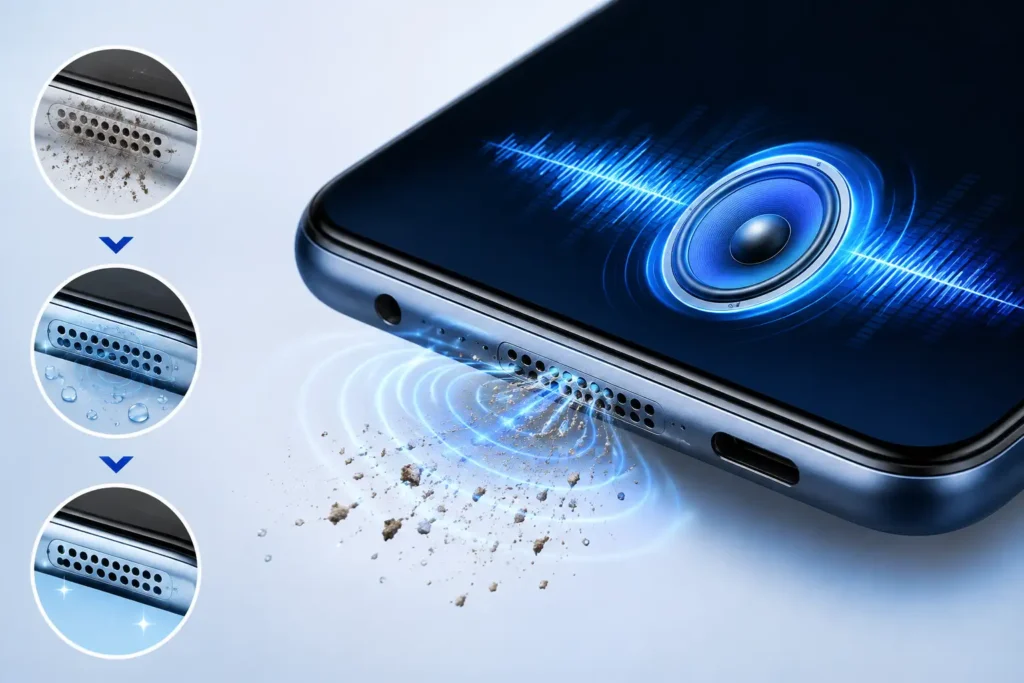
A phone speaker suddenly sounding weak, distorted, crackly, or muffled does not automatically mean the speaker is damaged.
Sometimes the problem appears after water exposure. Sometimes the speaker opening is obstructed. In other cases, Bluetooth routing, Android settings, an app, or an actual hardware fault may be responsible.
A mobile sound tester can be useful here—not because it magically repairs every speaker problem, but because it gives you a simple way to test what your phone can still reproduce.
One option is Speaker Tester & Cleaner fix by One Music Player. It combines speaker testing, frequency playback, cleaning sounds, and volume-related tools in one Android app.
Quick Answer
Speaker Tester & Cleaner fix is worth trying as an initial troubleshooting tool if your Android speaker sounds unusually low, muffled, or distorted.
Its most useful feature is not simply making sound louder. It lets you play and test different frequencies and compare the speaker before and after using its cleaning function.
That distinction matters.
A software tool may help when moisture or a temporary obstruction is affecting sound, but it cannot repair a torn speaker diaphragm, damaged connection, failed amplifier, corrosion, or another physical hardware problem.
So use the app as a diagnostic first step, not as proof that your speaker is healthy or as a replacement for professional repair.
What Is Speaker Tester & Cleaner fix?
Speaker Tester & Cleaner fix is an Android Music & Audio app published on Google Play by One Music Player.
The Google Play listing currently shows 5M+ downloads, an Everyone content rating, ads and in-app purchases. Google Play also identifies DEEP SPARK LTD in the developer information.
The app combines several related tools:
- automatic speaker testing
- manual frequency testing
- frequency generation
- speaker-cleaning sounds
- sound clarity tools
- volume boosting
The developer states that its frequency testing covers approximately 20 Hz to 20,000 Hz.
Table of Contents
The Better Way to Use a Mobile Sound Tester
Many people will probably open an app like this, press Clean, hear some unusual tones and decide whether the phone sounds better.
That wastes the most useful part of the app: comparison.
Instead, create a simple before-and-after test.
Before running a cleaning function, play the same familiar voice recording or music clip and note:
Volume: Is it unusually quiet?
Clarity: Do voices sound covered or muffled?
Distortion: Do you hear buzzing or crackling?
Channel: Is the problem coming from the bottom speaker, earpiece, or both?
Then run the appropriate speaker test or cleaning function.
Afterwards, replay the same audio at the same volume level.
This gives you a much more useful result than relying on memory.
Why this matters
Human hearing is surprisingly poor at comparing two sounds separated by time.
If you change the song, volume, room, phone position and test frequency at the same time, it becomes difficult to know whether anything actually improved.
For a meaningful test, change one thing at a time.
Frequency Tests Can Reveal Problems a Normal Song Hides
Music is not an ideal speaker diagnostic signal.
A song contains vocals, instruments, compression and constantly changing frequencies. A speaker problem affecting a limited frequency range can therefore be difficult to notice.
A frequency generator is different.
Speaker Tester & Cleaner fix provides frequency-based testing, including automatic and manual modes.
For example, while slowly testing frequencies you might notice:
- one range produces obvious buzzing;
- another becomes unexpectedly weak;
- distortion appears only at higher volume;
- the speaker sounds clean at moderate volume but breaks up near maximum volume.
Those observations can be more informative than simply asking, “Is my speaker loud?”
However, this is still a consumer troubleshooting test, not laboratory calibration. Phone speakers are not designed to reproduce every frequency between 20 Hz and 20 kHz at equal loudness.
Do not assume that failing to hear an extremely low or high test tone means your phone is defective.
A Useful Test Most People Forget: Change the Audio Output
Before blaming the phone speaker, test another output.
Play the same audio through:
- the phone’s speaker;
- headphones or earbuds;
- a Bluetooth speaker, if available.
If the problem occurs only through the phone’s built-in speaker while other outputs sound normal, that provides a useful clue.
If the same distortion exists through multiple outputs, the problem could instead involve the audio source, an app, EQ settings, Android software, or the recording itself.
That simple comparison can prevent you from spending time repeatedly “cleaning” a speaker that was never the actual problem.
What Does the Speaker Cleaner Really Do?
The app’s developer describes a sound-based cleaning system designed to help remove water, dust or blockage affecting speaker output.
The important word is sound-based.
The phone is producing particular tones/vibrations through its speaker. It is not physically cleaning inside the device.
That means expectations should be realistic.
If moisture around the speaker opening is contributing to muffled audio, sound vibration may be worth trying.
But an app cannot physically remove every contaminant, nor can sound repair a mechanically damaged speaker.
Do not turn a cleaning tool into a repair tool
Repeatedly running cleaning cycles is unlikely to solve problems such as:
- a damaged speaker component;
- internal corrosion;
- a loose connection;
- impact damage;
- an audio circuit failure.
If there is no meaningful improvement after reasonable troubleshooting, continuing to generate tones is not necessarily useful.
Volume Booster: Useful, but Don’t Use It as a Diagnosis
The app also promotes volume enhancement.
This is where users should distinguish between two different goals:
Testing a speaker asks whether it is reproducing sound normally.
Boosting sound tries to make the output louder.
Increasing volume can make a weak speaker seem temporarily more usable, but it doesn’t identify the reason it became weak.
More importantly, extremely loud test tones can be uncomfortable and may introduce distortion.
You May Also Like
 Speaker Cleaner Water Remover – Android Speaker Cleaning Guide 2026
![Phone Speaker Dust Cleaner Sound 2026 – Does It Really Work? [GET WATER]](https://tnshorts.com/wp-content/uploads/2026/04/Phone-Speaker-Dust-Cleaner-2026-300x157.png "Phone Speaker Dust Cleaner Sound 2026 – Does It Really Work? [GET WATER] 2") Phone Speaker Dust Cleaner Sound 2026 – Does It Really Work? [GET WATER]
Phone Speaker Dust Cleaner Sound 2026 – Does It Really Work? [GET WATER]
![Speaker Cleaner Water Remover App for Android 2026 [PERFECT CLEAN] – What It Does and When It Really Helps](https://tnshorts.com/wp-content/uploads/2026/04/Speaker-Cleaner-Water-Remover-App-for-Android-2026-300x200.webp "Speaker Cleaner Water Remover App for Android 2026 [PERFECT CLEAN] – What It Does and When It Really Helps 3") Speaker Cleaner Water Remover App for Android 2026 [PERFECT CLEAN] – What It Does and When It Really Helps
Speaker Cleaner Water Remover App for Android 2026 [PERFECT CLEAN] – What It Does and When It Really Helps
![Speaker Cleaner with Water Eject App Android 2026 [AUTO CLEAN] – What It Does and When It Helps](https://tnshorts.com/wp-content/uploads/2026/03/Speaker-Cleaner-with-Water-Eject-App-Android-2026-300x200.webp "Speaker Cleaner with Water Eject App Android 2026 [AUTO CLEAN] – What It Does and When It Helps 4") Speaker Cleaner with Water Eject App Android 2026 [AUTO CLEAN] – What It Does and When It Helps
Speaker Cleaner with Water Eject App Android 2026 [AUTO CLEAN] – What It Does and When It Helps
Start at a moderate volume and increase only when necessary. Avoid placing the speaker close to your ear while testing high-volume or unfamiliar frequency tones.
When This App Is Most Useful
Consider Speaker Tester & Cleaner fix when:
Your phone got slightly wet and now sounds muffled.
A before/after cleaning test may tell you whether the sound improves.
One speaker seems quieter than you remember.
Manual frequency playback can help you listen for obvious inconsistencies.
You hear crackling during certain sounds.
Testing controlled tones may help determine whether distortion occurs only in particular ranges.
You are unsure whether the problem is the speaker or your media.
A generated test tone gives you another audio source for comparison.
You want one app for testing and cleaning.
Having both functions together is more convenient than installing separate frequency-generator and speaker-cleaner apps.
Limitations You Should Know
The biggest limitation is simple: an Android app cannot perform a complete hardware diagnosis merely by playing sounds.
A test result should therefore be treated as a clue, not a repair-shop verdict.
There is another practical issue.
The app is supported by ads and in-app purchases, according to its Google Play listing.
Some Google Play reviewers have specifically complained about the amount of advertising or the paid experience. That doesn’t determine whether the testing function will work for your phone, but it is a legitimate usability trade-off to consider before installing.
If you only need to play one test tone once, a simpler frequency generator may suit you better.
Things to Know Before Installing
Download the app from its official Google Play listing rather than looking for modified or unofficial APK versions.
At the time checked, Google Play lists:
App: Speaker Tester & Cleaner fix
Publisher: One Music Player
Category: Music & Audio
Downloads: 5M+
Monetization: Contains ads and in-app purchases
Content rating: Everyone
Google Play’s Data safety section currently says the developer declares that the app may share Device or other IDs with third parties, declares no data collected, and says data is encrypted in transit. It also indicates that data cannot be deleted. These are developer-provided disclosures and can change.
Review the current Data safety and permissions information on Google Play yourself before installing, particularly because app versions and developer declarations can change.
A Speaker Test Cannot Diagnose Everything
This is perhaps the most important limitation of any “mobile sound tester.”
Imagine your speaker sounds quiet.
The cause might be:
- moisture;
- debris around the grille;
- Android volume configuration;
- an equalizer setting;
- Bluetooth audio routing;
- the particular video or recording;
- a damaged speaker;
- another hardware problem.
A frequency test can help isolate symptoms, but it cannot automatically distinguish every one of those causes.
That is why testing methodically is more valuable than repeatedly pressing a Fix button.
Who Should Use It?
Speaker Tester & Cleaner fix makes the most sense for someone who wants an easy first troubleshooting step before considering repair.
It is particularly relevant if your speaker still produces audio but suddenly sounds muffled, quieter, uneven or slightly distorted.
The combination of testing and cleaning in one app is also convenient for users who don’t want separate tools.
Who Should Avoid It?
Skip this type of app as your main solution if the phone has obvious physical damage, severe water exposure, no sound from the speaker under any circumstances, or other hardware symptoms.
Professional inspection is more appropriate in those situations.
It may also be unnecessary if you only want an occasional pure tone. A basic frequency-generator app can accomplish that with fewer additional features.
And if advertising interruptions strongly bother you, check the current free/premium setup before committing to this particular app.
Better Alternatives Depend on the Problem
There isn’t one universally “better” speaker app.
If you only need to determine whether the speaker produces particular tones, choose a simple frequency generator.
If your main problem happened immediately after minor water exposure, a dedicated water-ejection/speaker-cleaning tool may provide a simpler interface.
If your speaker works normally but isn’t loud enough for you, investigate Android volume settings, accessibility audio features or an appropriate audio/equalizer tool rather than assuming the speaker needs cleaning.
If the speaker crackles even at moderate volume across multiple apps, or the problem persists after basic troubleshooting, a hardware inspection is a better next step than installing several cleaner apps.
A 2-Minute Speaker Troubleshooting Routine
Before paying for repair, try this sequence:
- Disconnect Bluetooth devices.
- Remove any case that could obstruct the speaker opening.
- Play a familiar voice or audio clip.
- Test the phone speaker at moderate volume.
- Compare it with headphones or another audio output.
- Run a controlled speaker/frequency test.
- If recent moisture is suspected, try the cleaning function.
- Replay the original audio at the same volume.
- Compare the before-and-after result.
If nothing changes, don’t automatically assume that running the cleaner ten more times will produce a different result.
That result itself is useful: the problem may require a different troubleshooting path.
FAQ
Can I use my Android phone as a mobile sound tester?
Yes. A frequency-generator or speaker-testing app can play controlled tones that help you listen for weak output, distortion, buzzing and other obvious abnormalities.
Can Speaker Tester & Cleaner fix repair a damaged speaker?
It should not be treated as a hardware repair tool. Sound-based cleaning may help in some obstruction or moisture-related situations, but software cannot repair physically damaged speaker components.
Can it remove water from my phone speaker?
The app provides a sound-based cleaning function intended to help with water or blockage around the speaker. Results will depend on the actual cause of the muffled audio.
Why can I not hear every frequency during the test?
Your phone’s tiny speaker cannot reproduce every frequency equally, and human hearing sensitivity also varies considerably by frequency. Not hearing an extreme test tone alone does not prove the speaker is defective.
Should I test at maximum volume?
No. Begin at a comfortable, moderate level. You usually do not need maximum volume to identify obvious buzzing, distortion or missing sound.
Does the app contain ads?
Yes. Google Play currently labels Speaker Tester & Cleaner fix as containing ads and in-app purchases.
How do I know if the problem is actually hardware?
If problems remain across different audio sources and apps, persist after restarting and basic troubleshooting, or follow serious impact/liquid damage, hardware service becomes a more appropriate next step.
Final Recommendation
Speaker Tester & Cleaner fix is best viewed as a troubleshooting toolbox, not a magic speaker repair app.
Its combination of automatic/manual testing, frequency generation and speaker-cleaning sounds can be genuinely useful when you want to investigate muffled, weak or distorted Android audio before considering repair.
Its main drawbacks are equally important: the test cannot conclusively diagnose hardware damage, sound-based cleaning cannot repair broken components, and the free experience includes advertising and in-app purchases.
For TNShorts readers, the best approach is simple:
Test first → compare the result → try cleaning only when appropriate → retest → seek another solution if nothing improves.
That process is far more useful than installing several “speaker fix” apps and repeatedly boosting the volume.
Editorial Disclosure
TNShorts publishes independent Android app reviews, guides, comparisons, and educational content.
Content is based on publicly available information, practical analysis, and user-focused evaluation. Features, pricing, permissions, privacy practices, ratings, and availability may change over time.
Readers should verify important information through the official developer and Google Play sources before making decisions.
More Articles You May Like
![Why Speaker Cleaner Water Eject Apps Reached 5M+ Installs on Android in 2026 [OUT WATER]](https://tnshorts.com/wp-content/uploads/2026/03/Speaker-Cleaner-Water-Eject-Apps-Android-2026-300x200.webp "Why Speaker Cleaner Water Eject Apps Reached 5M+ Installs on Android in 2026 [OUT WATER] 5") Why Speaker Cleaner Water Eject Apps Reached 5M+ Installs on Android in 2026 [OUT WATER]
Why Speaker Cleaner Water Eject Apps Reached 5M+ Installs on Android in 2026 [OUT WATER]
 What Is a Speaker Cleaner with Remove Water App for Android? (SOUND CLARITY 2026)
 What Is a Speaker Cleaner with Eject Water App for Android? (PURE SOUND 2026)
![What Is Phone Junk Cleaner for Android in 2026? [FULL CLEAN]](https://tnshorts.com/wp-content/uploads/2026/01/Phone-Junk-Cleaner-for-Android-in-2026-300x200.png "What Is Phone Junk Cleaner for Android in 2026? [FULL CLEAN] 8") What Is Phone Junk Cleaner for Android in 2026? [FULL CLEAN]
What Is Phone Junk Cleaner for Android in 2026? [FULL CLEAN]