
Quick Answer
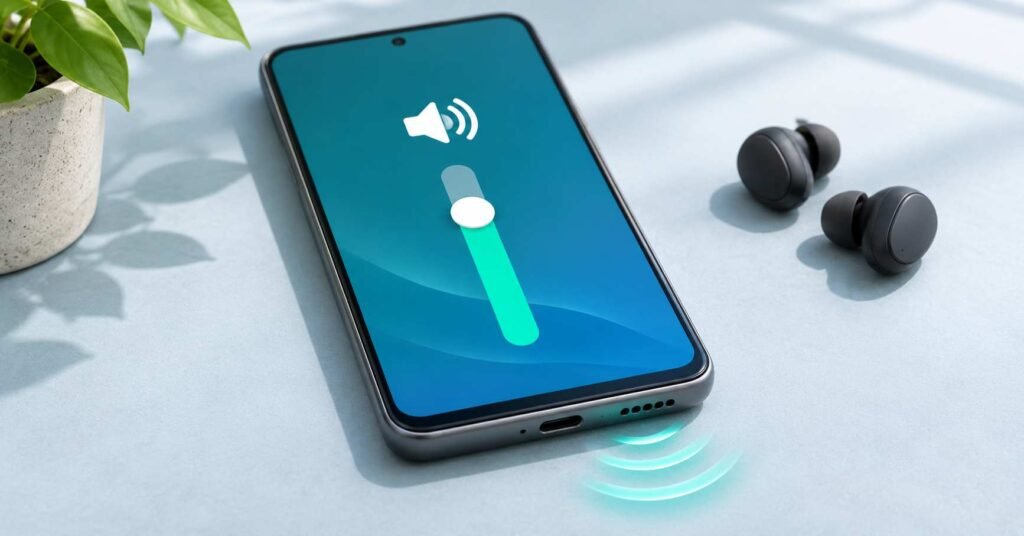
Volume Booster: Loud Speaker is worth trying if several videos or recordings sound clean but too quiet on your Android phone. First, play a familiar clip and check Media volume and the selected speaker or headphones. If only one video is quiet, try captions or its audio settings. If several clips crackle at normal volume, troubleshoot the speaker before adding a boost.
Find out why your Android sounds quiet
Play a familiar voice clip and a song from two different apps. Then play that same voice clip through another output, such as your phone speaker instead of Bluetooth. If the problem follows the clip, look at the recording or player. If it follows one speaker or headset across several clips, check that device first.
While media is playing, press a volume button and expand the volume panel. Check Media volume. If your phone shows an output selector, confirm where the audio is going. Calls, alarms and ringtones have separate controls. See Google’s guide to Android volume settings.
If the phone speaker sounds rough even at a normal level, try the same clip with Bluetooth off. Our Android speaker testing guide explains how comparing outputs can narrow down the problem. Pixel owners can also follow Google’s Pixel sound troubleshooting steps. If the sound changed after a splash, see our guide to muffled speakers after water exposure.
What the app controls actually help with
- Volume boost. Try a small increase when the whole recording is quiet, such as a tutorial recorded far from the microphone. Lower the boost before switching to a different clip, which may already be loud.
- Equalizer and bass controls. The app description advertises a 10-band equalizer with presets and manual adjustments. If bass masks speech, try a small bass reduction with the volume unchanged. Compare the same sentence before and after.
- Edge lighting. The app advertises animated edge effects for calls, notifications and charging. Leave lighting off during your audio trial so you can judge the sound controls on their own.
Limitations
A volume boost raises background music and effects along with voices. It can make harsh or crackling sound more obvious. Results may also differ by phone, playback app and audio output. A successful test on the built-in speaker tells you little about how your Bluetooth earbuds will behave.
Things to know before installing
The supplied store screenshot identifies the developer as ZAW INNOVATIVE TECHNOLOGIES and shows ads and in-app purchases. Check the live listing for your phone’s compatibility, purchase terms and Data safety information. Developers supply those disclosures, and TNShorts could not independently confirm this app’s current privacy practices. See Google Play’s explanation of Data safety.
The screenshot shows a Display Over Other Apps option under edge lighting. If Android requests overlay access and you only want audio controls, leave that access off and see whether the controls you need work.
View Volume Booster: Loud Speaker on Google Play
How to test a volume booster safely
- At a comfortable volume, play a few seconds of familiar spoken audio with the boost off.
- Replay those same seconds with a small boost. Keep the equalizer unchanged so you can tell what made the difference.
- Keep the lowest setting that helps you understand more words. Reduce the boost if speech turns harsh or the speaker buzzes.
- Turn the boost off before switching outputs or starting a louder clip.
An app’s boost percentage does not tell you how loud the sound is at your ears. Keep headphone listening comfortable and limit time spent listening to loud sounds. See the WHO’s safe-listening guidance.
You May Also Like

Who should try it and who should skip it?
Try it for occasional quiet media on an otherwise working speaker, or if you want to see whether its equalizer improves the audio you listen to most. Test your usual playback app and output before paying for any feature.
Skip it if your main problem is a quiet caller, a weak alarm, a crackling speaker or headphones you routinely turn up to overpower traffic. Adjust the relevant Android volume, troubleshoot the speaker or try better-fitting headphones, depending on the problem.
Better options for common sound problems
| Your goal | What to try first |
|---|---|
| Understand quiet dialogue | Captions or a dialogue mode, where available. |
| Fix low Bluetooth volume | Check Android’s audio output and the accessory’s own volume controls if it has them. |
| Listen over background noise | Try better-fitting or noise-cancelling headphones at a comfortable level. |
| Hear audio across a room | Try an external speaker if the phone sounds clear but lacks enough output for the space. |
Frequently asked questions
Will it work with Bluetooth earbuds?
The app description advertises Bluetooth support. Test your exact earbuds and media app at a low starting level, since results can vary.
Can it make a phone call louder?
Use the phone’s volume-up button during a call to raise call volume. If the caller is still hard to hear, compare the earpiece and speakerphone.
Why does the boost help a tutorial but make a movie unpleasant?
A quiet tutorial may benefit from a small boost throughout. In a movie, the same setting also raises sound effects. Try captions or dialogue mode if speech is the issue.
Does the app require root?
The supplied app description says root is unnecessary. Check the Play listing from your phone for current device compatibility.
How do I uninstall Volume Booster: Loud Speaker?
Turn off the boost and edge lighting, then open Settings → Apps → Volume Booster: Loud Speaker → Uninstall. Menu names vary by phone. If the sound still seems different, check your Android sound settings and any equalizer in your media player.
Editorial disclosure
TNShorts publishes independent Android guides and comparisons. This article uses the supplied store screenshot and description, official guidance and practical analysis. TNShorts did not install or test this app. Features, pricing, permissions, privacy practices and availability can change.
Final recommendation
Check Android’s Media volume, the selected output and a second clip first. If several clips still sound clear but quiet, give Volume Booster: Loud Speaker a short trial. Keep it if a small adjustment makes your usual audio easier to understand. Use captions for buried dialogue and troubleshoot any speaker that crackles at normal volume.
More Articles You May Like
 Speaker Cleaner with Water Eject App Android 2026 [AUTO CLEAN] – What It Does and When It Helps
 What Is Linked Phone Business Number Apps Android 2026? [FULL FREE]
 Bass Volume Booster-Equalizer Apps for Android (SPEAKER POWER 2026)
 What Are Volume Control (Lower or Boost) Apps for Android in 2026? [FULL VOLUME]