In 2026, most of our memories live only inside phones. One mistake in the gallery, a wrong tap in WhatsApp, or a quick “free up space” option can remove months or years of photos. When this happens, people immediately ask one thing: how to recover deleted photos safely, without risk and without complicated steps.
This guide explains, in simple language, how to recover deleted photos from your phone gallery, how to handle permanently deleted images, how to restore WhatsApp pictures, and how to get back deleted iPhone photos. You will also see the real limits of recovery, and when it is better to stop trying and protect your privacy instead.
Table of Contents
Quick summary table: where to start
| Problem | First thing to try | Second option | When it usually works |
|---|---|---|---|
| Deleted from Android gallery just now | Gallery Trash / Recycle Bin | Google Photos Trash | Within ~30–60 days of deletion |
| Deleted long ago from Android | Deep-scan recovery app | PC recovery software for SD card / internal storage | If data not overwritten yet |
| Deleted WhatsApp photos | Ask sender / check WhatsApp Media folder | Restore from WhatsApp backup or cloud backup | If backup existed before deletion |
| Deleted iPhone photos | “Recently Deleted” album | iCloud / iTunes / Finder backup | Within 30 days or if backup exists |
| Deleted from SD card | Phone’s gallery trash (if supported) | Dedicated SD card recovery software on computer | If card is readable and not heavily used after loss |
How photo recovery really works in 2026
When you delete a photo, the file usually does not disappear immediately. The system only marks its storage space as “free”. Until something new is written over that space, a recovery tool can often bring it back.
That means:
- The faster you act, the higher the success rate.
- Taking new photos, installing big apps, or downloading movies can overwrite deleted images.
- Many phones and cloud apps now have a temporary trash or Recently Deleted section that keeps removed photos for about 30 days.
Because of this, every recovery attempt should start with built-in options before using any special tool.
How to recover deleted photos from Android gallery
1. Check Gallery Trash / Recycle Bin
Most modern Android phones (Samsung, Xiaomi, Oppo, etc.) keep deleted photos in a hidden trash for around 30 days before removing them permanently.
General steps (wording may differ slightly by brand):
- Open Gallery.
- Tap the menu (three dots or “More”).
- Look for Trash, Recycle Bin, or Recently Deleted.
- Long-press the photos you need.
- Tap Restore.
If you see nothing there, it may mean:
- Trash feature was off at the time of deletion, or
- The 30-day window is over and the files were cleared.
2. Restore from Google Photos Trash
If you use Google Photos, that app keeps its own trash for 60 days in most cases. Google Help+1
Steps (Android):
- Open Google Photos.
- Tap Library → Trash.
- Touch and hold the photo(s) you need.
- Tap Restore.
The photo will return to:
- Your Google Photos library,
- Any albums it was in, and
- Your phone’s gallery, if sync is enabled. Google Help
If you do not see the image in Trash, it is treated as permanently deleted from Google Photos.
3. Check phone brand cloud or backup
Some brands offer their own cloud backup (for example, a brand account linked to your phone). In that case:
- Open the brand’s cloud or backup app.
- Look for Photos, Gallery, or Cloud Trash.
- Restore the required photos back to the device.

How to recover permanently deleted photos on Android
If photos are no longer in any Trash or Recently Deleted folder, you are dealing with a deeper level of recovery.
What to do immediately
- Stop taking new photos or videos.
- Avoid large downloads and major app installs.
- Do not run “cleaner” or “storage booster” apps.
All these things can overwrite the deleted photo data and make recovery impossible.
Option 1: Deep-scan recovery apps on Android
Special recovery apps can scan internal storage and memory cards for traces of deleted files and list what is still recoverable. Reddit+1
Typical process:
- Install a trusted recovery app from a legitimate app store.
- Grant storage access permission so it can scan.
- Run Deep Scan or Full Scan.
- Preview found photos.
- Restore only the files you really need.
This works best:
- Soon after deletion, and
- When the phone has not been heavily used after the loss.
Option 2: Use a computer for SD card recovery
If the photos were on an SD card, you can:
- Remove the SD card from your phone.
- Insert it into a computer using a card reader.
- Run a reputable photo recovery program to scan the card.
Many guides recommend this approach because a computer has more processing power and can run advanced scan modes.
Important limitation
If storage blocks have already been overwritten, no tool can guarantee a result, no matter what it promises. Some support discussions clearly say that after both the main album and the Recently Deleted folder are cleared, recovery may be impossible. Google Help.
How to recover deleted photos from WhatsApp
WhatsApp photos can usually be recovered in more than one way.
1. Ask the sender again
The simplest method is often ignored:
- If someone sent you the photo, ask them to send it again.
This is the fastest and safest path when it is possible.
2. Check WhatsApp Media folder
On Android:
- Open File Manager.
- Go to Internal storage → WhatsApp → Media → WhatsApp Images.
- Look into Sent and other folders too.
Sometimes images are still present in storage even when previews seem missing.
3. Restore from WhatsApp backup
If you enabled chat backup:
- On Android: Backup is usually on Google Drive. WhatsApp Help Center
- On iPhone: Backup is usually on iCloud.
General steps:
- Check that a backup exists from before you deleted the photos.
- Uninstall WhatsApp.
- Reinstall and verify your number.
- When prompted, choose Restore.
Note: You may lose messages received after the backup date.
4. Use specialised WhatsApp recovery tools
Some tools are made to recover WhatsApp media without needing a recent backup, by scanning local device storage. These can help when:
- Backup is too old
- Media folders are empty
- You do not want to reset chats
Always check:
- Who made the tool
- How it handles your data
- Whether it sends anything to external servers

How to recover deleted photos from iPhone
1. Use “Recently Deleted” on iPhone
On iPhone, deleted photos normally stay in Recently Deleted for 30 days. Apple Support+1
Steps:
- Open Photos.
- Scroll to Recently Deleted.
- Select the photos.
- Tap Recover.
2. Recover from iCloud Photos or iCloud.com
If you turned on iCloud Photos:
- Deleted images may still be in Recently Deleted across devices or on iCloud.com. Apple Support+2Apple Support+2
On iCloud.com:
- Sign in on a browser.
- Open Photos.
- Click Recently Deleted.
- Select and Recover.
3. Restore from iTunes / Finder backup
For users who made regular backups:
- Connect iPhone to computer.
- Open Finder (macOS) or iTunes (older setups).
- Choose the device and Restore Backup.
This replaces current data with the backup version, so it should be done carefully.
4. When both Camera Roll and Recently Deleted are empty
If you:
- Deleted photos from the main album, and
- Deleted them again from Recently Deleted, and
- Have no usable backup,
then recovery becomes very hard and often impossible for normal users. Some desktop tools claim to help, but even expert discussions warn that if both places are cleared, the chance is low. Apple Support Community.
Example of a simple all-in-one recovery app (Android)
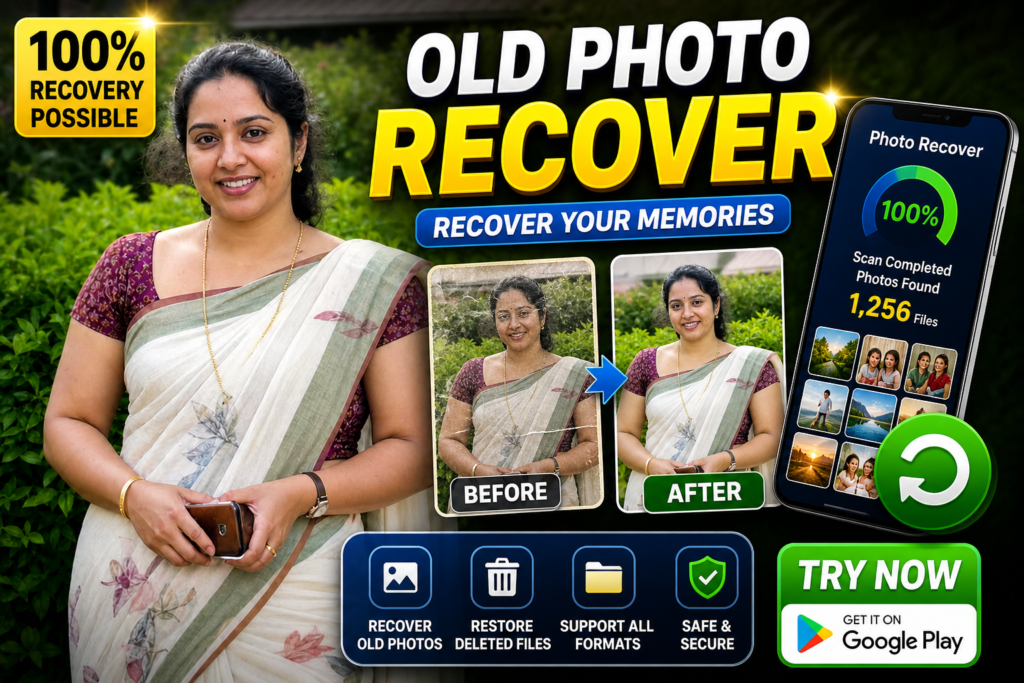
For daily users who want a guided method on Android, apps designed to recover photos, videos and documents from local storage can help. One example in this category is Photo Recover Pro – Recover File (Android).
Key characteristics (based on its feature description):
- Designed to recover deleted photos, videos, and documents.
- Supports many file types (JPG, RAW, MP4, MOV, DOC, ZIP and more).
- Uses a scan → preview → restore flow so you can check files before bringing them back.
- Works fully on the device without uploading files to the cloud, which helps keep personal content private.
Typical usage flow:
- Open the app and tap Scan Now.
- Choose the storage area (usually internal storage).
- Wait for the deep scan to finish.
- Preview the recovered thumbnails.
- Select important photos and tap Restore to save them to a safe folder.
The app also explains why it needs broad storage permission: to scan all folders where lost photos may still exist.
Pros and cons after real-life style testing
Pros of using dedicated recovery apps
- Simple enough for family members and elders to use.
- Helpful when phone trash, Google Photos Trash, and WhatsApp backup no longer have your images.
- Preview helps avoid restoring unwanted or private files.
- Can find forgotten old photos buried deep in storage.
Cons and limits
- Cannot bring back photos already overwritten by new data.
- Very old deletions may appear corrupted or incomplete.
- Full scans on large storage can be slow.
- Some tools may collect data or show aggressive ads, so choosing a trustworthy app matters.
When recovery is necessary – and when to stop
It usually makes sense to try recovery when:
- The photos are related to family, work, studies, or legal reasons.
- There is a recent backup or you just deleted them.
- You have not used the phone heavily after losing the photos.
It may be better to stop trying when:
- You already tried trash, backups, and one or two solid tools.
- The phone or SD card shows hardware errors.
- You are pushed to pay high amounts without a clear explanation.
Endless attempts can waste time and may expose your private data to untrusted services.
Simple protection tips for the future
To avoid serious photo loss again:
- Turn on automatic backup (Google Photos, iCloud, or brand cloud). Google Help.
- Review Recently Deleted before emptying it.
- Avoid running “cleaner” apps that delete caches and trash without asking clearly.
- Keep enough free storage so the system does not force aggressive clean-up.
- For very important events (wedding, exams, work documents), copy photos to a second device or cloud the same day.
If you follow these habits, you will rarely need emergency recovery, and even if something goes wrong, you will have more than one way to get your photos back.
Bonus Section: About Photo Recover Pro – Recover File (For Users Who Want an Easy Tool)
If a user prefers a guided, simple recovery method on Android, there are tools designed to help retrieve deleted photos, videos, and documents directly from local device storage. One such option available on the Play Store is Photo Recover Pro – Recover File.
Photo Recover Pro – Recover File (2026) — Quick Overview
What the App Offers (Developer Summary)
The app is designed to help users restore deleted photos, videos, documents, and other file formats with only a few steps. Its main purpose is to assist with accidental deletion, system errors, and storage issues.
Core Features
- Photo Recovery: Retrieves deleted images such as family photos, travel pictures, and other important memories.
- Video Recovery: Supports MP4, MOV, and other formats for recovering lost recordings.
- Document Recovery: Finds deleted PDF, Word, Excel, and ZIP files.
- Preview Mode: Shows a full list of detected files, allowing users to check quality before restoring.
More Articles You May Like